Guiding Your Child’s First Steps in the Digital World
In today’s digital age, handing your child their first smartphone comes with both excitement and anxiety. While you want them to explore, learn, and connect with friends, you also need to ensure they’re safe online.
Google Family Link bridges this gap by giving parents the tools to supervise their child’s device without hovering constantly.
Understanding Google Family Link
Google Family Link is a free parental control application that allows you to monitor and manage your child’s Android device or Chromebook. Unlike restrictive solutions that simply block everything, Family Link takes a balanced approach—giving children room to explore while keeping parents informed and in control.
The system requires two apps working together: the Family Link app on your phone and either the Family Link companion app or built-in supervision features on your child’s device. Once paired, you gain the ability to manage their digital experience from your own device, whether you’re in the next room or across town.

Getting Started: The Setup Process
Begin by downloading the Family Link for parents app from either the Google Play Store or Apple App Store. The app guides you through creating a supervised Google Account for your child if they’re under 13, or linking to their existing account if they’re older.
Next, you’ll set up your child’s device by either downloading the Family Link for children app or activating built-in supervision features on newer Android devices. The setup wizard makes this process simple, prompting you to establish initial rules around screen time, app usage, and content access. Remember, these initial settings aren’t permanent—you can fine-tune them as you discover what works best for your family’s needs.
Core Features That Matter
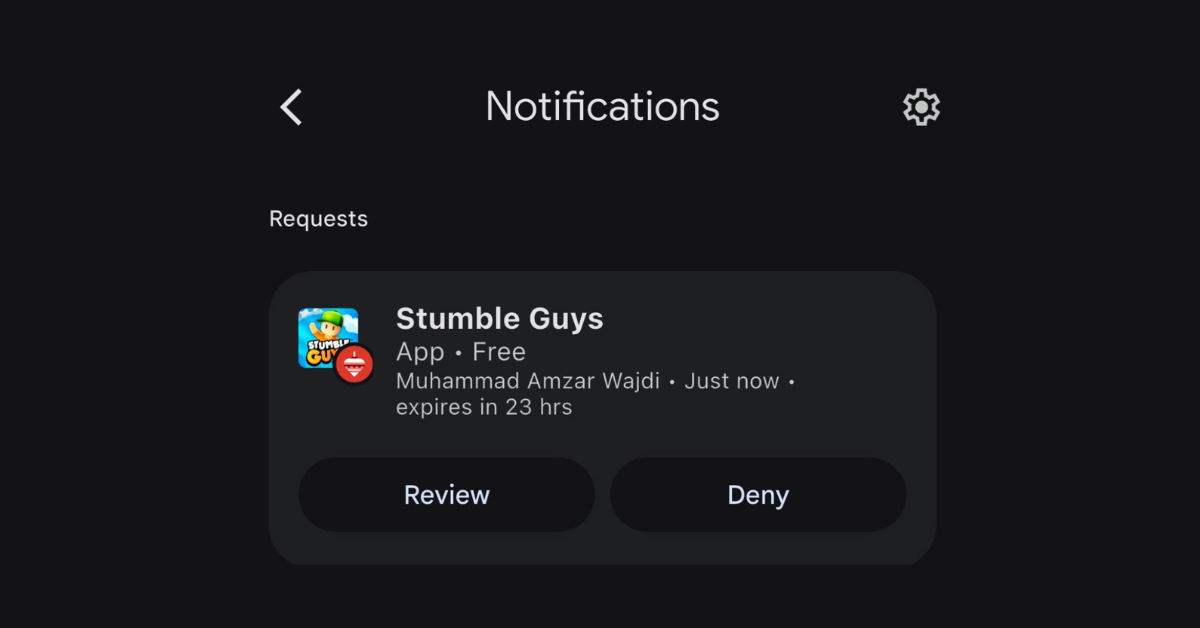
The heart of Family Link lies in its ability to approve or block apps before your child downloads them. When your child requests a new app from the Google Play Store, you receive an instant notification. You can review the app’s details and either approve it immediately or decline with an explanation. This feature transforms app downloads from a unilateral decision into a teaching moment about making smart digital choices.
Screen time management lets you set daily limits and establish device bedtimes. For instance, you might allow two hours of screen time on school days and three hours on weekends, with devices automatically locking at 9 PM. You can also pause the device instantly when it’s time for dinner, homework, or family activities.
Location awareness provides peace of mind when your child is away from home. As long as their device is powered on and connected, you can see its current location. This feature proves invaluable for confirming they’ve arrived safely at school or tracking down a lost device.
Activity insights deliver weekly reports detailing which apps your child uses most frequently and how much total screen time they’re accumulating. These reports aren’t meant for punishment but rather to spark meaningful conversations about digital habits and priorities.
Content filtering works across Google’s ecosystem, including Chrome browser, Google Search, YouTube, and the Play Store. You can filter mature content, block specific websites, and ensure search results remain age-appropriate. For YouTube, you can choose between YouTube Kids or a supervised YouTube experience with content restrictions.
Making Family Link Work for You
Success with Family Link depends less on the technology and more on how you implement it. Start by having an honest conversation with your child about why you’re using parental controls. Frame it not as distrust but as a safety measure—similar to wearing a seatbelt or having rules about where they can go in the neighborhood.
Involve your child in setting initial boundaries.
Ask them what they think is fair for screen time limits or bedtimes. When children help create the rules, they’re more likely to respect them. Be prepared to negotiate and adjust as circumstances change.
Use activity reports as conversation starters rather than evidence for confrontation. If you notice they’re spending three hours daily on a game, ask open-ended questions: “What do you enjoy about this game?” or “Do you feel like you have enough time for other activities?” This approach builds trust and teaches self-reflection.
Gradually increase independence as your child demonstrates responsibility. Family Link should evolve with your child, not remain static. When they consistently respect limits and make good choices, acknowledge it by loosening certain restrictions. This progression teaches them that responsible behavior earns trust and freedom.
Important Considerations
Family Link works optimally for children under 13 but can supervise teenagers with their consent. When children reach 13 (or the digital consent age in your country), they can choose to stop supervision, though many families continue using it through mutual agreement.
The service requires both you and your child to have Google Accounts and works on Android devices running version 7.0 or newer, plus Chromebooks. Parents can use either Android or iOS devices to supervise.
One limitation worth noting: Family Link primarily supervises Google services and Android device features. It doesn’t monitor content within individual apps or social media platforms, though it does control whether those apps can be installed in the first place.
Building Healthy Digital Habits Together
Family Link is a powerful tool, but it’s not a substitute for active parenting.
The most successful families combine the app’s technical controls with ongoing dialogue about internet safety, digital citizenship, and balanced technology use.
Think of Family Link as training wheels for the digital world. Just as you gradually remove training wheels from a bicycle, you should plan to progressively reduce digital supervision as your child matures and proves they can make responsible decisions independently.
By starting with clear expectations, maintaining open communication, and adjusting controls as your child grows, you create a foundation for healthy technology habits that will serve them well into adulthood.

By Nur Ain Wahida
Customer Success Manager @ Twenty-Four Consulting
By Nur Ain Wahida
Customer Success Manager @ Twenty-Four Consulting
Related Posts