Why Teams Struggle with Google Workspace
Let’s be honest: You’re not struggling with Google Workspace because you’re not smart enough.You’re struggling because you’re trying to drive a Tesla like it’s a 1998 Kancil.
You’ve moved to the cloud, but your habits are still stuck in a desktop folder on a server in 2010. I see it every week in Malaysian offices: teams paying for Business Standard licenses but only using Gmail to send “final_v2_REVISED.docx” attachments back and forth on WhatsApp.
If you feel like Google Workspace is “just a simpler version of Microsoft,” you’re missing the point. And you’re likely wasting hours of your team’s life every single month on “work about work”—hunting for files, merging versions, and sitting in meetings that could have been a comment thread.
Today, we’re going to look at why your team is likely stuck in first gear and how to finally tap into the power you’re already paying for.
The Microsoft-to-Google Bridge: Mindset Over Matter
Most people look for a 1-to-1 replacement for their old tools. But Google Workspace isn’t a replacement; it’s a different philosophy.
| What you’re used to (Microsoft) | The Google Workspace Reality | Why it matters |
|---|---|---|
| Folders (Deeply nested) | Labels & Search | Finding things in 2 seconds vs. 2 minutes. |
| Email Attachments | Live Links | One “Source of Truth” vs. 5 different versions. |
| “Save As” | Version History | No more fear of “losing” the original data. |
| Siloed Apps | Integrated Sidebars | Updating your Tasks without leaving Gmail. |
1. The “Attachment” Trap: Why You’re Still Creating Versions
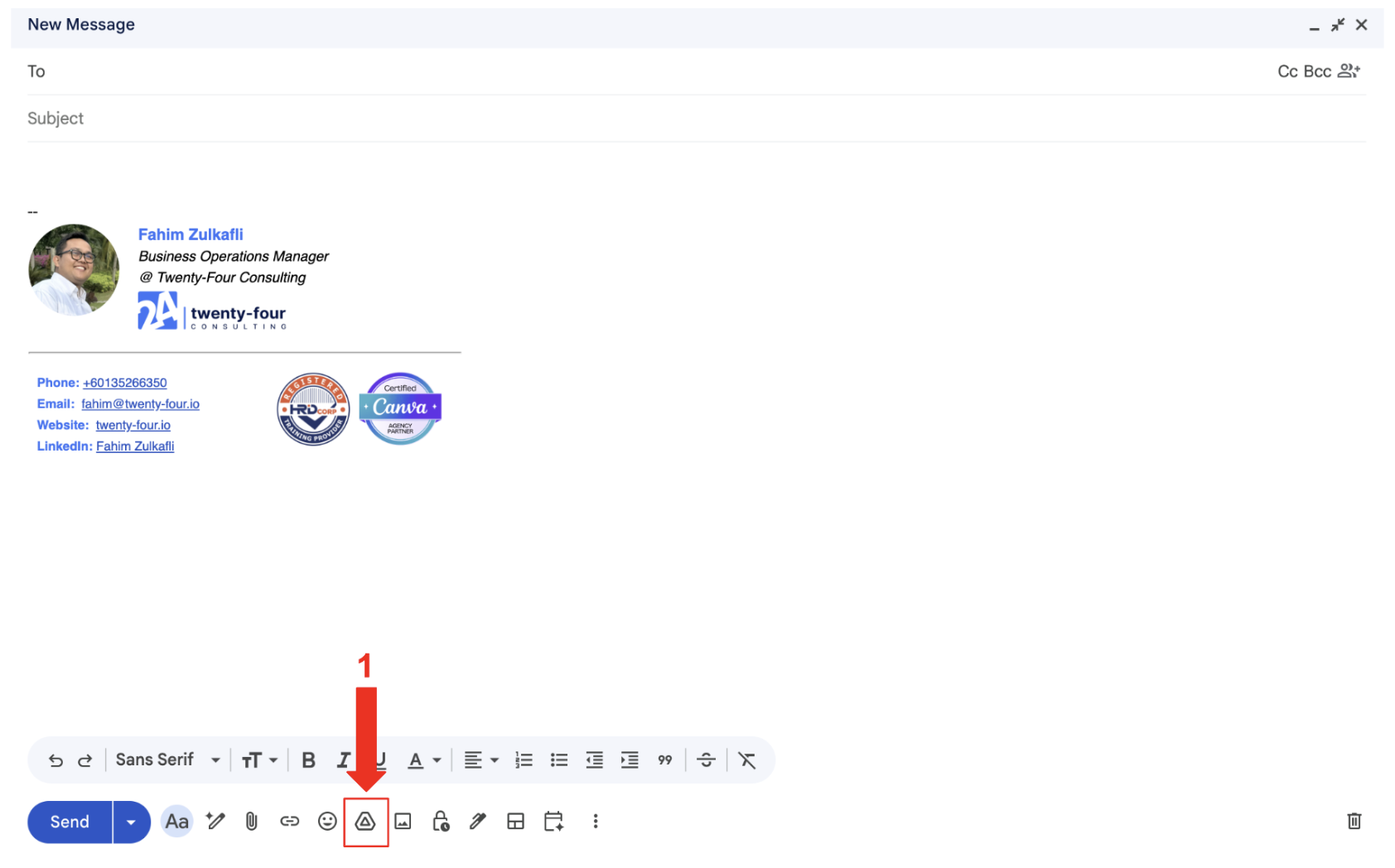
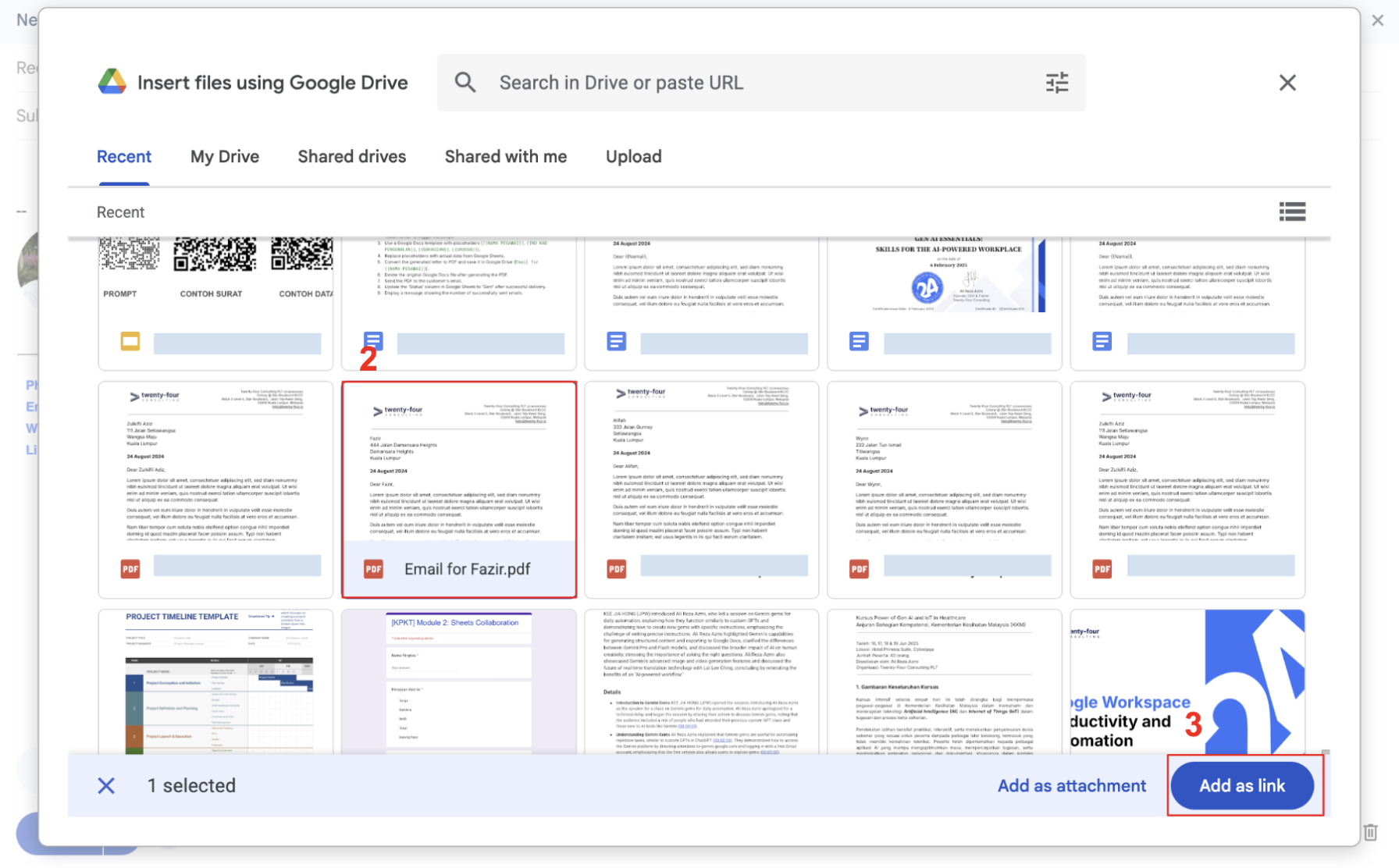
The biggest sign of underuse? The “Attach File” button. When you attach a file, you’re essentially giving birth to a twin. Now there are two versions of that document. By the time it goes through three departments for approval, you have a quadruplet situation, and nobody knows which one is the “real” one.
The shift: Stop attaching. Start sharing.
When you share a link, everyone works on the same living document. If the boss in HQ makes a change, the vendor in Penang sees it instantly. No merging required.
“I used to spend my Friday afternoons merging three different ‘Quarterly Reports’ into one. I thought that was just ‘the job.’ It wasn’t. It was a failure to use the tool I had right in front of me.”
2. The “My Drive” Silo: The Silent Productivity Killer
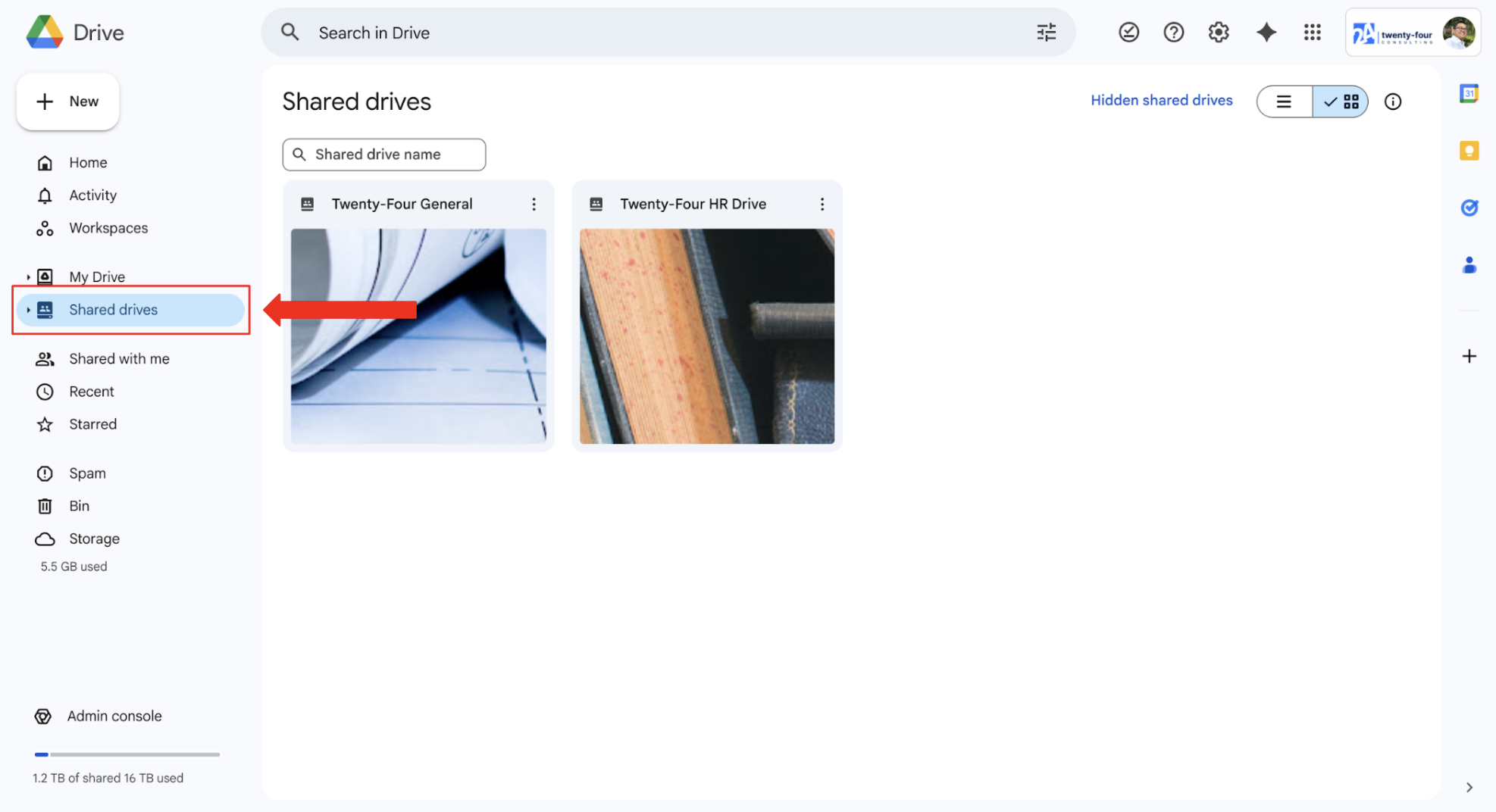
I see this in almost every Malaysian SME: Everyone saves files in their own “My Drive.” Then, someone leaves the company or goes on Raya leave, and suddenly, the “Master Vendor List” is locked away in a digital vault no one can access.
The solution: Shared Drives.
Individual ownership is for personal photos. For work, the team should own the files. Shared Drives ensure that even if a team member moves on, the project’s intellectual property stays with the company.
3. Ignoring the “Smart” Sidebar: The 10-Second Wins
Most users keep 15 tabs open. One for Gmail, one for Calendar, one for Tasks, one for Keep. Every time you switch tabs, you lose focus. Google built a “side panel” specifically so you don’t have to do that.
Try this: While reading an email about a project deadline, click the small blue “Tasks” icon on the right sidebar. Drag that email into your task list. Done. You’ve just linked the context to the action without leaving your inbox.
Real-World Example: The Tender Submission Nightmare
Imagine a team in PJ preparing a government tender. The old way:
- The writer emails the draft to the Manager.
- The Manager edits and emails “v2” to the Finance Head.
- The Finance Head is out for a site visit in Melaka, so they download it to their phone, make notes, and WhatsApp a photo of the notes back.
- The team spends all Thursday night trying to figure out which edits are the latest.
The Google Workspace way:
The team creates one Shared Drive for “Tender-2026-Gov.” Everyone opens the one Google Doc. The Finance Head leaves comments directly on the Doc from their phone while in Melaka. The Manager uses Version History to see exactly what changed. The submission is ready by 2:00 PM. No “v2,” no confusion, no panic.
What to Try This Week
- The “No-Attachment” Challenge: For internal emails, only send Drive links for one week. See how much cleaner your inbox feels.
- Audit Your Drive: Look at your most important project. Is it in “My Drive” or a “Shared Drive”? Move it to a Shared Drive today.
- The Right-Click Discovery: Spend 5 minutes right-clicking things you usually just double-click. Right-click a tab in Chrome, an email in Gmail, or a file in Drive. You’ll find shortcuts you didn’t know existed.
Conclusion
We often blame the tools for our stress. We say, “This system is messy,” when the reality is our habits are messy. Google Workspace is designed to get out of your way, but you have to let go of the old manual steering wheel first.
It will feel “too simple” at first. That’s the point. Work shouldn’t be a struggle of managing files; it should be about doing the work. Give these shifts a try for 10 days. You’ll realize you weren’t “bad at tech”—you were just using a 2026 tool with a 2010 mindset.
Ready to Fix the Workflow?
If your team is still attaching files, storing everything in “My Drive,” and creating version chaos — it’s not a software problem.
It’s a workflow problem.
And that’s exactly what proper training solves.
We organise hands-on Google Workspace and AI training for Malaysian companies who want their teams to fully make use of their platforms — not just “have the license.”
We focus on practical habits:
- Shared Drives setup
- Collaboration without attachments
- Approval workflows
- Real-time editing
- Smart use of AI to reduce repetitive work
No generic feature walkthroughs. Just real scenarios your team deals with daily.
If you’d like your team to stop working around the tool and finally work with it, we’re happy to help.
 Contact us at https://twenty-four.io/contact

By Fahim Zulkafli
Business Operations Manager @ Twenty-Four Consulting
By Fahim Zulkafli
Business Operations Manager @ Twenty-Four Consulting
Related Posts